April 28, 2019
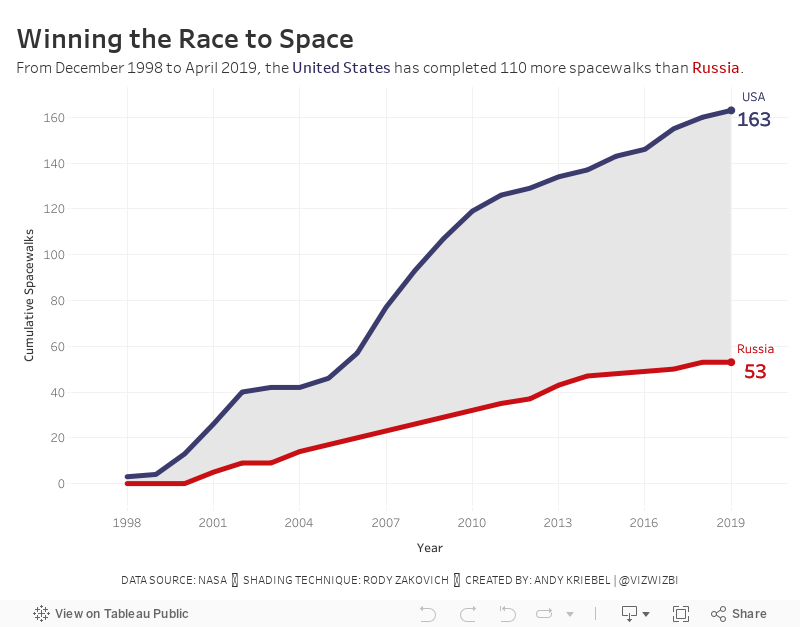
#MakeoverMonday: Space Station Spacewalks

 |
| Credit: NASA |
What works well?
- The title provides a nice summary of the data.
- The stacked bar chart makes is easy to compare the US and Russia within a single year.
- The colors are easy to distinguish from each other.
- Since there is no axis, labeling the bars makes sense.
What could be improved?
- The background image doesn't add any value and takes attention away from the chart.
- It took me a minute to figure out which color went with which country. That should be more obvious.
- Straighten the diagonal text for the years.
My Ideas
- Consider other chart types: area chart, stacked area chart, barbell chart, line chart.
- Consider other metrics like cumulative spacewalks or variance to some year.
- Check the two country flags for their official colors.
October 27, 2016
Viz Remake: NASA’s Global Land-Temperature Index

This past week I saw this tweet from Elon Musk:
This led me to have a look at the data visualisations on NASA’s website, in particular, their viz of the global land-temperature index which reminded me a lot of all of the great work we saw for Makeover Monday week 20 - Global Warming is Spiraling Out of Control.

There’s so much to like about this visualisation. It has a great summary on the left with a massive number that is the centre piece of their story. Their intentional design of making the large number the focus make the line chart supplementary. The line chart is clear and simple, the legend is out of the way and the beacon on the end captures your attention.
The data is available right there below the viz so I downloaded it so that I could reproduce this in Tableau. I often attempt to recreate visualisations I like as a way to learn and practice. Because in the end, the only way to get better is to practice…A LOT!
I was able to reproduce everything bar the blinking dot on the end of the line. I also chose to fill in the circles on the grey line because I don’t care for the open circles. Lastly, I added a + to the beginning of the large callout number. I think that helps provide a quicker understanding of what the number means.
 |
| Click on the image to download and interact |
September 26, 2012
Embedding the coolest WMS server ever into Tableau
Last Wednesday, Matthew Dawson-Paver, a Business Planning Performance Analyst at Skype asked on Tableau’s LinkedIn group: How can you connect Tableau to NASA's Blue Marble WMS servers?
Mel Stephenson pointed him to the NASA Earth Observations WMS. And I must say, this is quite possibly the coolest WMS I’ve seen.
http://neowms.sci.gsfc.nasa.gov/wms/wms?
Some of the text in the remainder of this post borrows from Tableau’s KB article on Mapping Data with WMS, focused on how to add and use a WMS server.
Add a WMS server
You can add or import a WMS server.
Step 1: Select Map > Background Maps > WMS Servers.

Step 2: In the WMS Server Connections dialog box, click Add.

Step 3: In the Add WMS Server Connection dialog box, type or paste the URL of the WMS server.

This is the WMS server link to enter: http://neowms.sci.gsfc.nasa.gov/wms/wms?
Step 4: When finished, click OK.
The URL for the WMS appears in the WMS Server Connections dialog box.

And a link to this WMS server is added to the Background Maps sub-menu.

Step 5: Choose the WMS server from the Background Maps sub-menu
Step 6: Double-click on a geographic field in your dimensions list (e.g., State in the Superstore Sales sample data) to build the initial map.
Step 7: Choose the layer you’re interested in from the Map Options and you can see some crazy cool maps.

This example is zip codes in the Superstore Sales data in the West region with Land Surface Temperature [Day] (8 day) as the layer.
Play around with it; I guarantee you’ll have fun!
Download the sample workbook here.