June 1, 2021
How to Calculate the Most Frequent Value of a Measure


January 14, 2020
#TableauTipTuesday: The Basics of Nested Level of Expressions

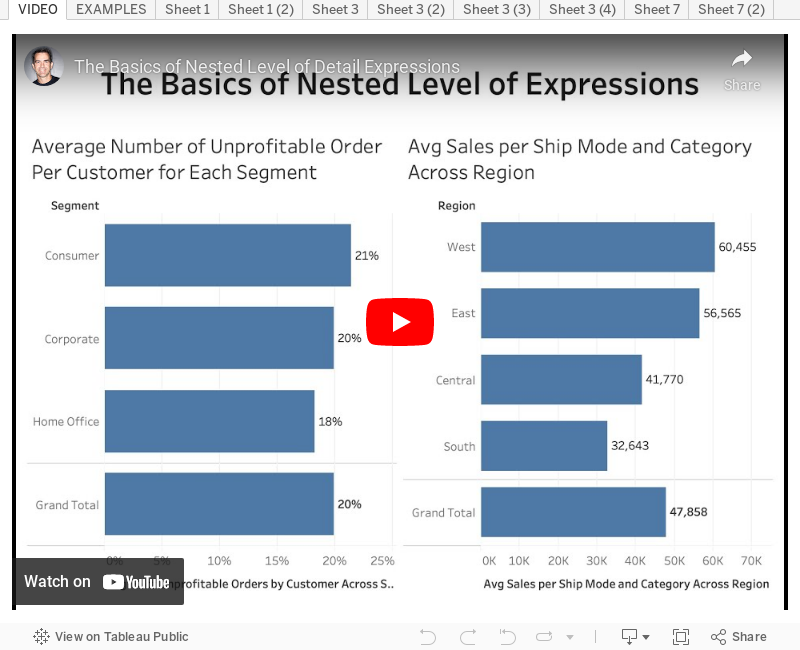
In this video, I walk you through the step-by-step method I use for understanding Nested LODs with two examples:
- Average Number of Unprofitable Order Per Customer for Each Segment
- Average Sales per Ship Mode and Category Across Region
August 30, 2017
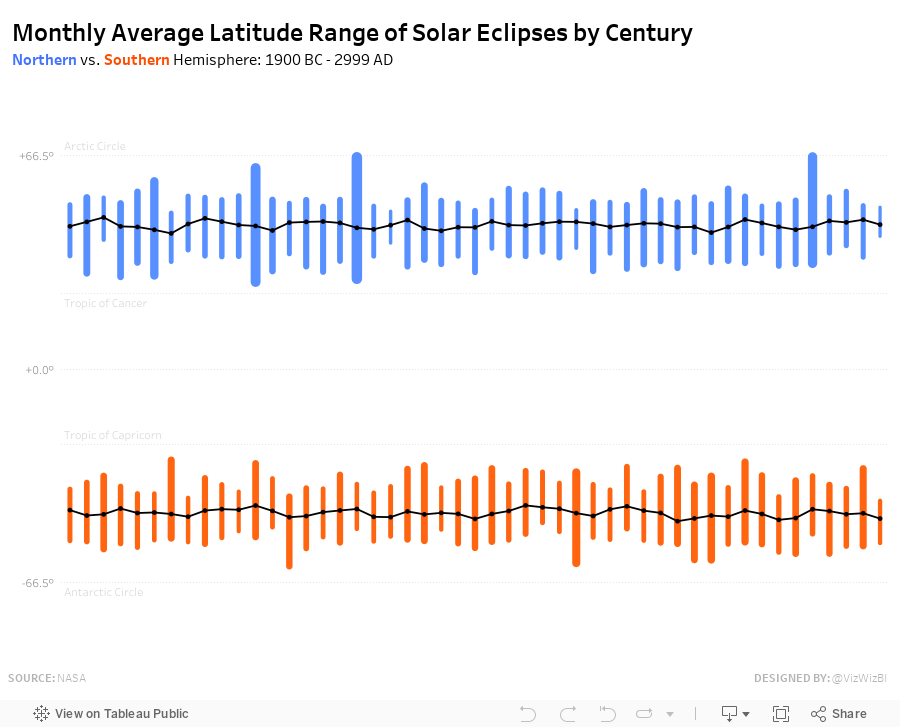
Workout Wednesday: Average Latitude of Solar Eclipses by Century
Requirements:
- Must be one sheet (except the footer)
- Must match my y-axis scale and format
- Must match my reference lines
- Match the blue and orange for the northern and southern hemispheres
- Match the title and subtitle
- Be sure to include the footer
- X-axis represents the centuries
- Century 3000 AD is excluded
- Black line is the average latitude across the centuries
- For each century and hemisphere, each "bar" spans from the max to the min average latitude by month, century and hemisphere.
- The bar width represents the difference between the max and min.
- Match the nice rounded ends on the "bars"
- Match the tooltips
May 9, 2017
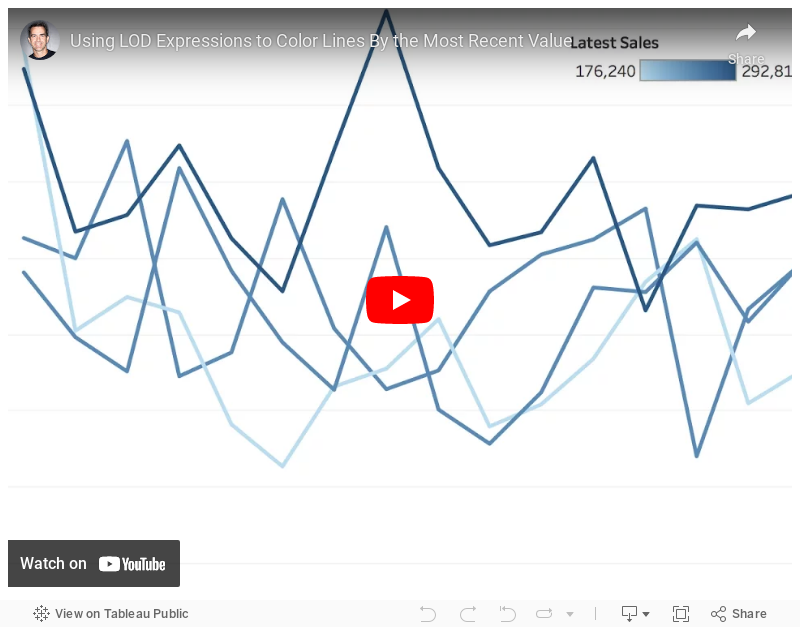
Tableau Tip Tuesday: Using LOD Expressions to Color Lines By the Most Recent Value
How can I color each line on a line chart by the most recent value?This requires a three-pass LOD expression. The key is to realize that Tableau created an aggregate table for each LOD working from the inside out. So
- Tableau calculates the inside LOD first.
- Then the second LOD is calculated based on the results of the first LOD.
- Then the third LOD is calculated based on the results of the second LOD.
Make sense? I hope so! If not, let me know. Enjoy!
May 2, 2017
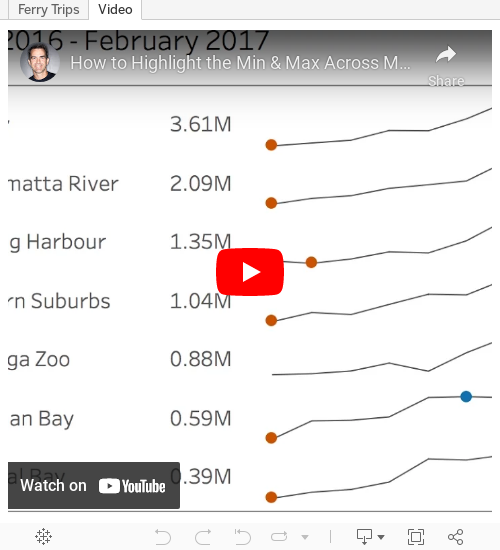
Tableau Tip Tuesday: How to Highlight the Min & Max Across Months with a Nested LOD
Tiny #MakeoverMonday viz this week. One of my best mates goes on the Manly route as his daily commute. Lucky guy! https://t.co/WnxLuTYi1A pic.twitter.com/G3eBOCbg1F— Charlie Hutcheson (@CharlieHTableau) May 1, 2017
If you scroll through the comments, you'll see that Charlie was hoping to do this via LOD, but couldn't quite get it. My tip this week solves this problem.
Enjoy!
March 17, 2015
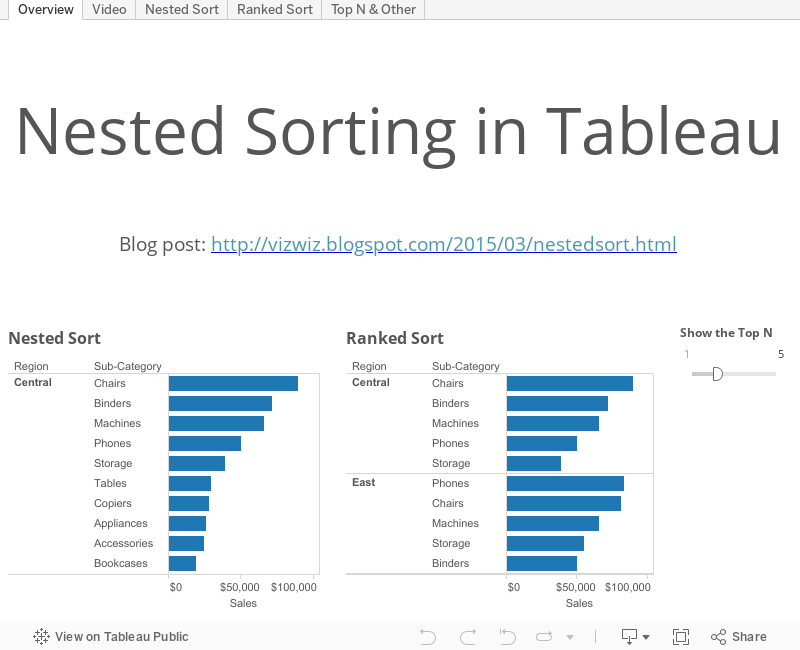
Tableau Tip Tuesday: Two Techniques for Nested Sorting
In this week’s tip, I review two techniques for accomplishing nested sorting:
- Using combined fields
- Using the rank function, which has the additional benefit of allowing top N filtering
Download the workbook used to create this video here.
July 18, 2012
Tableau Tip: Using a parameter for dynamic nested filtering
Suppose you have two dimensions, Customer Segment and Product Sub-Category, and you are displaying sales for each in a bar chart like this:

You want to look at only the top X Product Sub-Categories within each Customer Segment based on Sales. Naturally, you click on the Sort Descending button, but, uh oh, you get this:

What happened? The bars are not sorted by Product Sub-Category within each Customer Segment. They’re actually sorted by the total of the Product Sub-Category across the entire table.

What we really want is for the Product Sub-Categories to be sorted within each Customer Segment. To do that, you need to create a set.
Step 1 – Choose the two fields you want to create the set with, then right-click and choose Create Set.

Step 2 – Give the set a name if you want, rearrange them to the proper order and click ok.

NOTE: If the columns are not in the order you want, then simply drag them left and/or right. In our example, we want Customer Segment first because that is our first level dimension.
Step 3 – Drag your new set into the view by placing it between the Customer Segment and Product Sub-Category dimensions on the Rows shelf.

Step 4 – Clear the sort from the Product Sub-Category dimension, then right-click on the Set on the Rows shelf and choose Sort. Set the sort order to descending by Sales.

Your chart is now sorted by Product Sub-Category within each Customer Segment.

Step 5 – Clean up the chart by right-clicking on your set in the Rows shelf and uncheck Show Header.
That still leaves some extra grid lines. To clean them up go to the menu and choose Format => Borders. Move the slider on the Row Divider level one spot to the left.

You should now have a nice clean bar chart.
But, I want to see only the top X Product Sub-Categories within each Customer Segment. Let’s continue on.
Step 6 – Create a parameter to allow the user to choose between the top 1 and the top 10.

Step 7 – Create a “rank” field that will show you the rank of each Product Sub-Category within each Customer Segment.

Step 8 – Add the Rank measure to the Level of Detail shelf.
Step 9 – Edit the Rank field by right-clicking on the Rank field and choosing Edit Table Calculation. Choose Advanced from the Computing using list.

In the Advanced window, move both fields into the Compute Using box and change the Order Along section to Sales descending. Click OK.

Now updated the Rank table calculation to the following:

Basically what this is saying is that the Rank field should compute for each Product Sub-Category within a Customer Segment, then it should restart counting when it gets to the next Customer Segment.
Step 10 – Create a calculated field that uses the Top X parameter to filter the number of Product Sub-Categories that should be displayed within each Customer Segment.

This creates a true/false filter.
Step 11 – Add the Top X ? true/false calculated field to the Filter shelf and select True.
Step 12 – Show the Top X parameter control created in Step 6 and you’re done!

You can now use the Top X control to pick how many Product Sub-Categories you want to show within each Customer Segment.
Download the Tableau Workbook here.