February 2, 2021
How to Create a Trellis Chart in Seven Steps

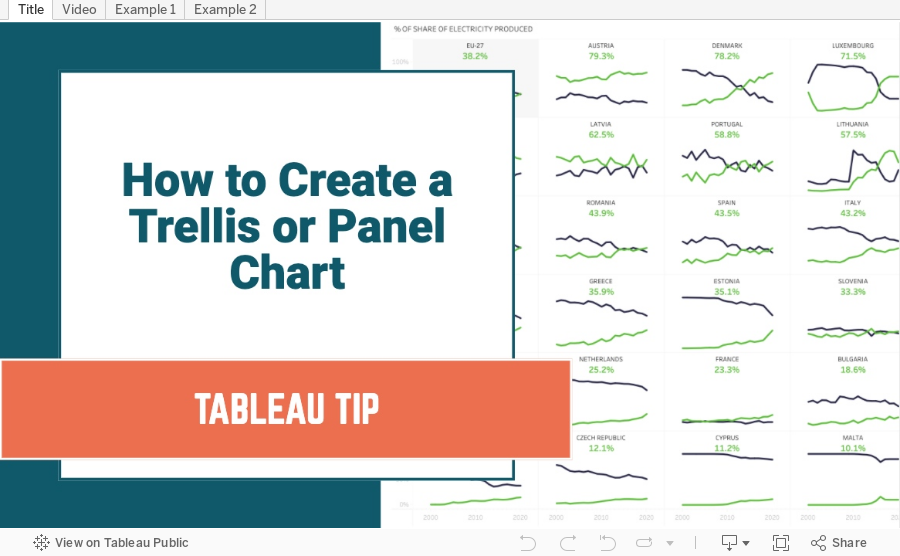
Trellis charts are a version of a small multiples chart that organizes the dimensions in the view across a grid. In this tip, I show you how to create a trellis chart that will work even when you are missing data.
Trellis / Panel Chart Calculations
//Columns
(index()-1)%(round(sqrt(size())))
//Rows
int( (index()-1)/(round(sqrt(size()))))
Steps
- Create the column and row calcs
- Create a custom date
- Place custom date on columns, measure on rows and dimension on detail
- Place column on columns, row on rows, and custom date on detail
- Ensure dimension is above date on detail shelf
- Change custom date on columns to ATTR
- Configure table calcs
- Check both the Dimension and the date field date in order
- Ensure the dimension is above the date field in the Specific Dimensions section
- Set "At the level" to the dimension
February 1, 2021
#MakeoverMonday Week 5 - Renewables vs Fossil Fuels in Europe

ORIGINAL CHART

WHAT WORKS WELL?
- The colors are perfect for the topic.
- I like the labels on the ends of the lines.
- The tooltips are very responsive and color-coded to match the line.
- The title and subtitle are informative and give good context.
- The slightly lighter shading of the axes labels make the chart stand out more.
WHAT COULD BE IMPROVED?
- Make the dashed lines solid.
- Format the percentages in the tooltip to one decimal place.
MY VERSION
June 28, 2017
Workout Wednesday: UK General Election Slopey Trellis Chart
Fortunately, I have my trellis chart calcs safely saved in my notes, so I didn't have to Google those. The tricky bit for me was the sorting. I'm not going to spoil how I did it for you, but you can download my workbook to see how I did it. As usual, Emma and I took very different approaches for the calculations required for the sorting. She used LODs for all of her calcs, I only used one. They both work though! It all depends on how your brain works I suppose.
The data prep parts were pretty straight forward (thank you Emma for alerting us to the need to do this). Emma loves little tricks in the formatting, but I didn't see any this week.
One thing I did different was to provide a "buffer" for the year labels. I place them 10% above the highest value so that they don't overlap the slope chart lines. Emma's year labels sometimes overlap with the slope chart lines. Just a personal preference for me.
Great fun Emma! Thanks! Took me about 90 minutes including this blog post on the train from Frankfurt to Hamburg. Great use of my time! #AlwaysLearning
Click on the image for the interactive version and to download.
February 15, 2017
Workout Wednesday: Dynamic Trellis Chart
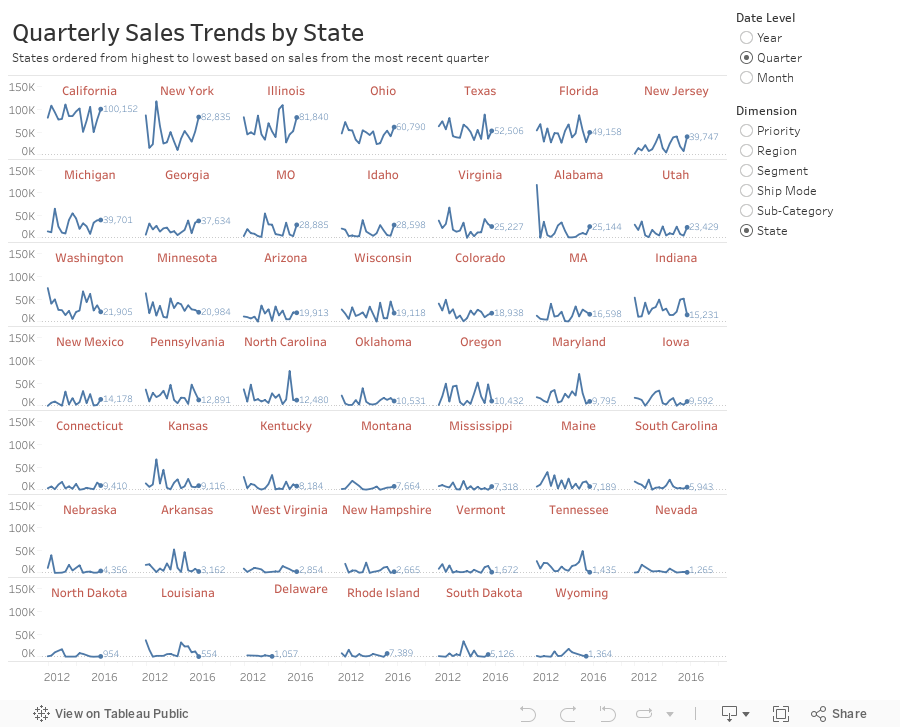
In this example, I'm using the same Superstore Sales I've used in previous Workout Wednesdays. Here are the guidelines:
- Match my colors.
- The user should be able to choose the level of detail they want for the date.
- The date axis format should not change, irrespective of the date level chosen.
- The user should be able to pick from the list of dimensions shown.
- The dimensions should be sorted from upper left to lower right based on the sales in the most recent time period.
- Match my tooltips. Note that they change based on the options the user selects. Pay attention to the date formats in particular.
- The title should update dynamically based on the date level and dimension selected.
- The end of each line should be labeled to the right of the last point.
- There should be a little circle on the end of each line.
- Each section of the trellis should include a label for the value of the dimension for that section. E.g., California should be on the upper left when you selected quarters by state.
- The dimension labels should be centered in each section.
- There should be no gridlines, but the zero line should be included.
- Each row should should have a light divider between them.
- My final view is 900x700.
March 23, 2016
Dear Data Two | Week 47: Smells

Let’s get straight to the point…London, you stink! Between your smokers, your trash, and your stinky commuters you need to slap on some deodorant!
For week 47, I tracked every smell or scent that I really noticed. Clearly other London smells really bad or I only notice the bad smells. How can only 1/3 of the things I smell be positive? Really, I think it’s that there are so many smokers that sets me off.
On the positive side, 85% of the food I smelled was nice. But dang, that stinky fish someone was cooking in the office was god awful. Why would someone microwave salmon? So gross! I went down to Brighton for a half marathon over the weekend and, not surprisingly, I really enjoyed the smell of the sea, the fresh air, the not-so-polluted part of England.
For inspiration this week, I looked at Giorgia’s postcard.

Her shapes reminded me of noses, so I found a nose icon and created a panel chart view, which I think turned out quite nice. This was definitely what I wanted to take over to the postcard, yet there was no way I had the talent to draw 45 noses. Off I went to the stationery store to look for a stencil. I couldn’t find a nose stencil, but I did find a cool 3D stencil. So I created 3D ovals and added a bunch of other information for context.
Fortunately Jeff isn’t colourblind, so I stuck with a red/green palette to signify good vs. bad smells. Flip through the story points below to see how my week turned out.
March 22, 2016
Tableau Tip Tuesday: How to Create Small Multiple Line Charts

For this week’s Tableau Tip Tuesday, I show you how I created the small multiples line chart of the race for the Republican presidential nomination. These charts are also known as panel charts. These can be quite tricky to make as sometimes you have to play around with the scope of your table calculation to get it quite right. This video should certainly get you started in the right direction.
Here are the two calculations you need to create the column and row dividers:
Column Divider
(index()-1)%(round(sqrt(size())))
Row Divider
int( (index()-1)/(round(sqrt(size()))))