May 25, 2024
How to Calculate Year over Year Change in Tableau
April 30, 2024
How I Create a Unit Histogram in Tableau

A unit histogram is a chart that shows the distribution of data points across a series of bins of a measure.
Unlike a traditional histogram that uses bars, a unit histogram consists of a set of marks, each representing a member of a dimension.
In this example, our final result is a unit histogram showing the distribution of states by their average sales.
If you like this, you'll love Next-Level Tableau. You get over 175 hours of live training with me, 130+ on-demand videos, workshops, office hours, workbooks, data sets, lots of new videos each year, any new courses I create, and a great Community.
Get more info and sign up today at nextleveltableau.com.
March 5, 2024
11 Steps to Create KPIs & Sparklines in the Same Sheet in Tableau

Want to cut the number of sheets you need in your KPI dashboard in half? These 11 simple steps will get much closer.
Steal the calcs to speed up your work.
P.S. If you like tips like this, remember to follow me on LinkedIn so you're notified about everyting I post. Content curated just for you, 3 times daily.
June 2, 2020
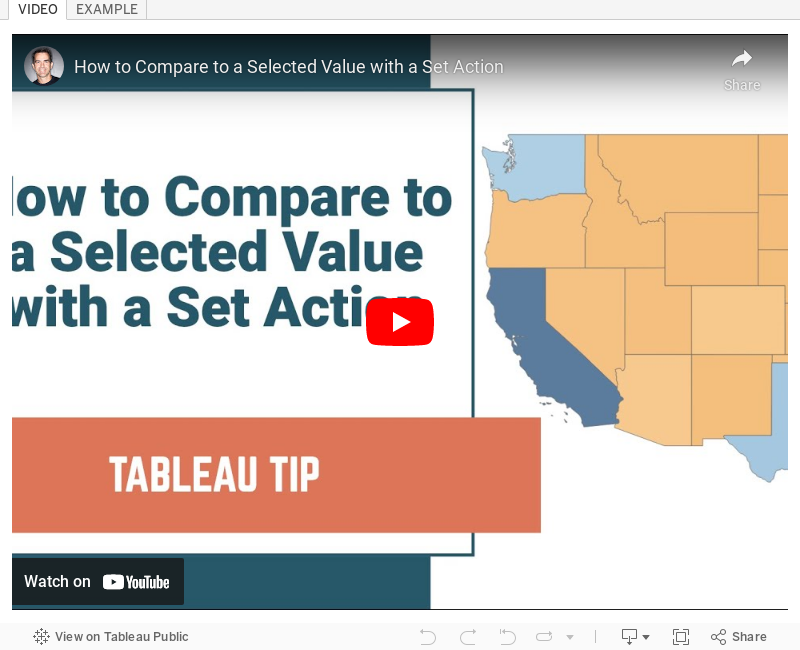
#TableauTipTuesday: How to Compare to a Selected Value with a Set Action

December 17, 2019
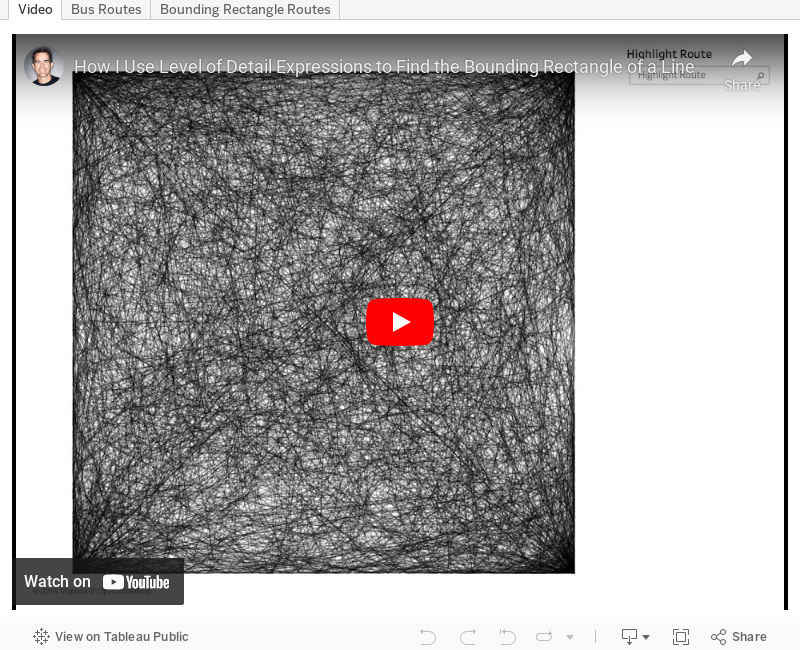
#TableauTipTuesday: How to Use Level of Detail Expressions to Find the Bounding Rectangle of a Line
Note: A couple of the calculations were backwards in the video, so download the workbook to ensure you have them correct.

December 13, 2019
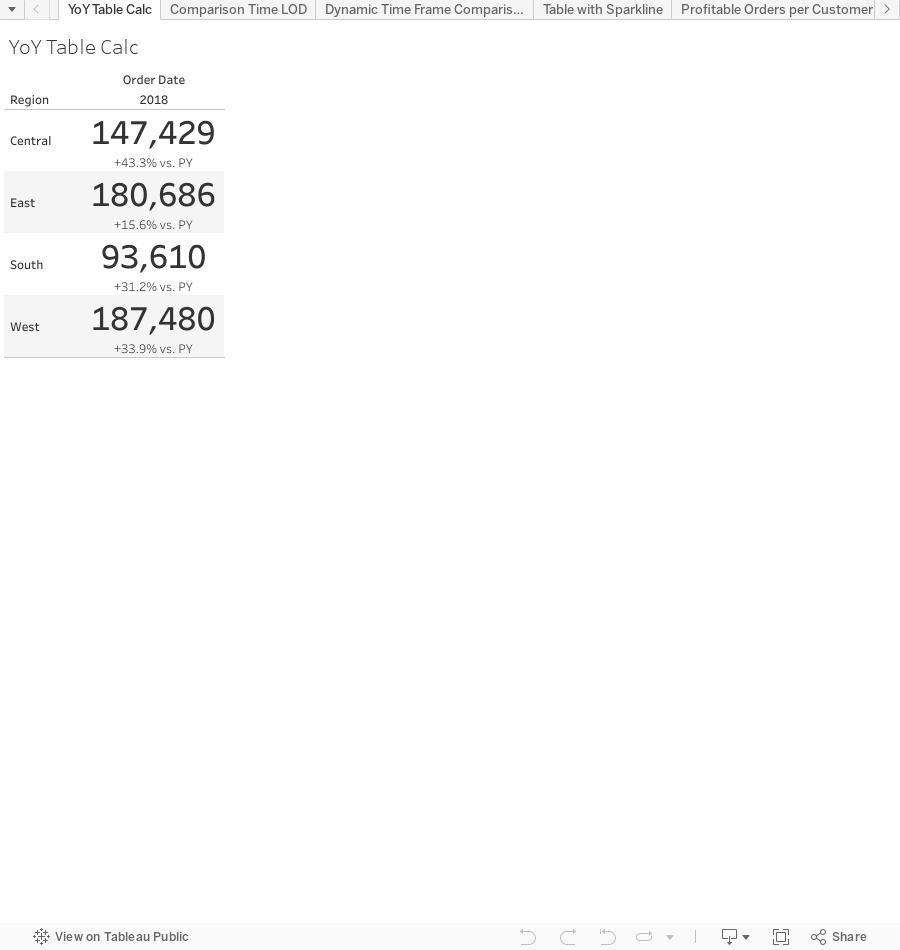
The Great Workbook of Table Calcs, LODs, and Actions

I've decided to share these with you, the Community, so that you can learn right along with the DSers. As of this writing, there are 61 examples in the workbook. As I add more, I'll re-publish the workbook.
You are welcome to use this in any way you please. However, please cite me as a source if you do; that's only fair. I would recommend you try to rebuild these examples before looking at the solution; you'll learn way more that way. The examples at the start of the workbook tend to be simpler, so start there and progress your way through. These aren't necessarily "perfect" solutions (there isn't a perfect solution), but they solve the puzzle we were seeking to solve.
And the name? It is inspired by the Big Book of Dashboards. I've always loved the name of that book! This workbook should be a good companion to the Tableau Visual Vocabulary I created in July 2018.
Enjoy! Now go learn!
December 1, 2019
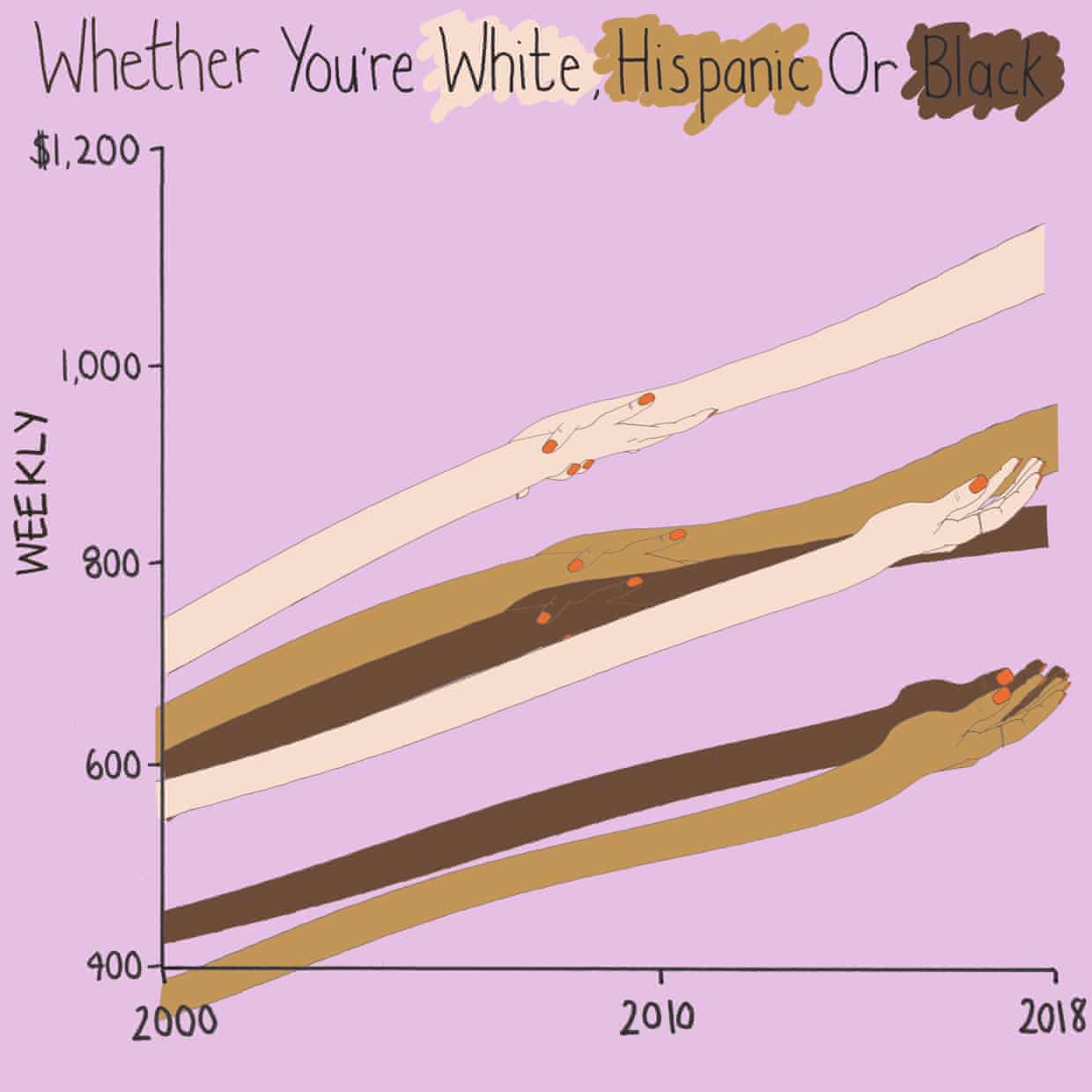
#MakeoverMonday: How have annual wages changed for union vs. non-union employees?

What works well?
- I like the handwriting font. It makes the viz look fun.
- The colors are distinct enough.
- Using shading on the title as a legend
What could be improved?
- Some hands are holding another, some are not. What does that mean? Does two hands mean union? If so, I don't understand why they join where they do.
- Using weekly wages is a tough concept to grasp. Why not convert it to annual wages?
- The viz is clearly not designed for any sort of precision or comparison.
What I did
- I really liked this Viz of the Day recently by Spencer Bauke and thought this was a good data set to try to emulate his work.
- I wanted to use parameter actions to allow the user to change the comparison year.
- I also wanted to use set actions like Spencer did, but this data wasn't structured in a way that made sense to try to do that.
- This turned out to be very good practice for LOD expressions.
- I loved using containers to lay all of this out!! It's a lot of work, but much easier to get everything to line up and all be the same size.
September 27, 2017
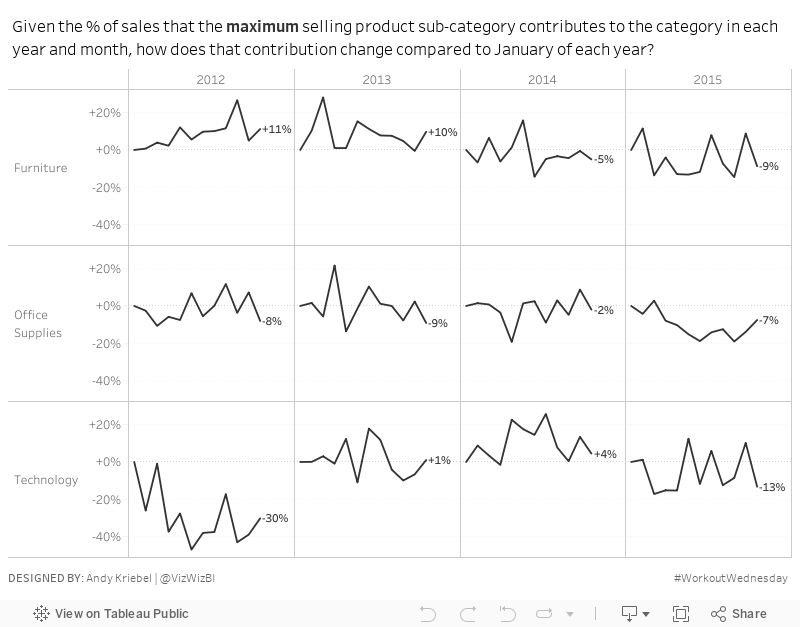
Workout Wednesday: Are the contributions of top sellers increasing throughout the year?
- How much the maximum selling product sub-category accounts for in a given month.
- How much that contribution has changed throughout the year.
Requirements:
- The line chart shows how the contribution of the top selling sub-category within each month has changed since January. That means you'll need to first figure out the value of the top selling category, then figure out the contribution of that sub-category within each month, then figure out how that contribution has changed compared to January within each year.
- Label the ends of each line. The label need to be right-justified horizontally and center-justified vertically. The label MUST NOT overlap the line at all.
- Match the format of my numbers.
- Match the tooltips.
- Match the title (easy peasy, just write what I wrote).
- Product categories are listed down the left.
- Years and Months are listed across the view.
- Month labels are hidden.
If you have any questions, let me know. Please tweet a picture of your attempt, include a link to the viz on Tableau Public and be sure to tag @EmmaWhyte and @VizWizBI.
June 28, 2017
Workout Wednesday: UK General Election Slopey Trellis Chart
Fortunately, I have my trellis chart calcs safely saved in my notes, so I didn't have to Google those. The tricky bit for me was the sorting. I'm not going to spoil how I did it for you, but you can download my workbook to see how I did it. As usual, Emma and I took very different approaches for the calculations required for the sorting. She used LODs for all of her calcs, I only used one. They both work though! It all depends on how your brain works I suppose.
The data prep parts were pretty straight forward (thank you Emma for alerting us to the need to do this). Emma loves little tricks in the formatting, but I didn't see any this week.
One thing I did different was to provide a "buffer" for the year labels. I place them 10% above the highest value so that they don't overlap the slope chart lines. Emma's year labels sometimes overlap with the slope chart lines. Just a personal preference for me.
Great fun Emma! Thanks! Took me about 90 minutes including this blog post on the train from Frankfurt to Hamburg. Great use of my time! #AlwaysLearning
Click on the image for the interactive version and to download.
April 4, 2017
Tableau Tip Tuesday: Using a LOD Expression to Count Customers Meeting a Sales Threshold
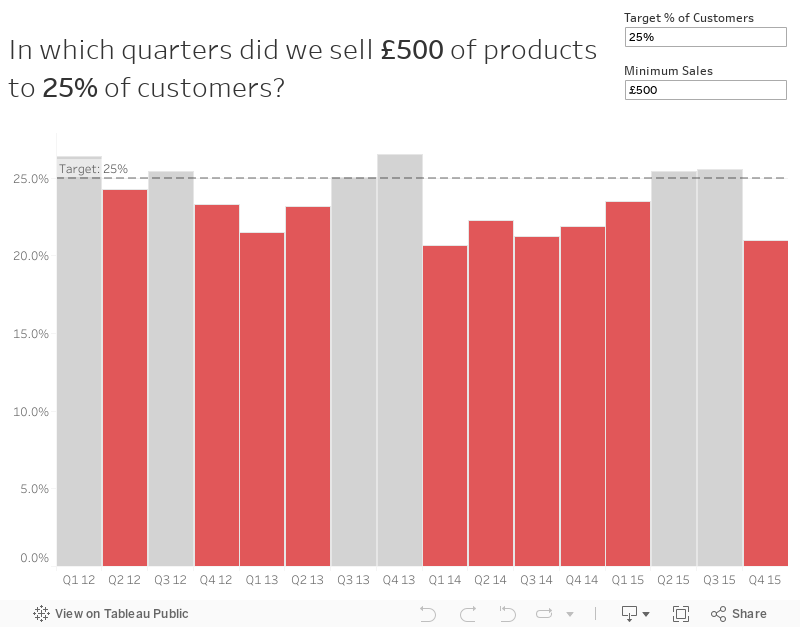
This post will walk through a pretty simple, but very applicable use case. Let's say you've set goals at your company that you want to sell £500 worth of products to each customer each quarter. But you also need that goal to be flexible. That is, the user needs to be able to change that amount.
First, we need to create a simple view that has Year and Quarter on the Columns shelf. I'm going to use continuous quarters.

Next, we need to create parameter to allow the user to enter the minimum threshold. To do that, I'll right click on Sales and choose Create -> Parameter. This automatically creates the parameter type that I need. I'm chose the All option in the Allowable values section because I want my user to be able to type in any value. I also set the Display format to currency.

Right click on your parameter and show the parameter control. The parameter doesn't do anything until I use it in a calculation. What we want to do now is create a level of detail expression to count the number of customers that met the threshold in each quarter. First, though, we need to determine the sale for each customer in each quarter. In a plain English sentence this would be:
For each customer, year and quarter, calculate their total sales.Since customer isn't in the view, that's our clue that we need to use a level of detail expression. The calculation looks like this:

Ok, now I need to determine how many customers met the threshold. To do this, I'm going to edit my calculation and add a simple IF statement.

This calc is looking at the sales for each customer in each quarter and if that customer meets the threshold, we count them. Otherwise, we don't count them. Dropping this into onto the Rows shelf, we now get a simple line chart.

As you change the parameter, every recalculates perfectly. Great! Now we know how many customers met the threshold each quarter. The problem now is that we don't have a lot of context. Is the 210 that met the £500 threshold in January good? Maybe we should have a secondary goal that X% of customers need to meet the target. In other words, 210 in January represents what percent of all customers?
To answer that we need to create another LOD expression to count the total customers.

One more calculation and we're nearly done. This time we want to calculate the % of customers that met the threshold.

Format this calculation to percentage (I like one decimal) and then replace the measure on the Rows shelf with this new calculation.


From here, I would create an additional calc that highlights the bars that are not meeting the threshold. Why? Because those are the areas of concern. The calculation looks like this:

Dropping that onto the color shelf and tweaking the colors, I now have a pretty complete view. The last thing I would do is adjust the format of my quarters and put it all together in a dashboard.
February 1, 2017
Workout Wednesday: The Distribution and Median of NFL Quarterbacks
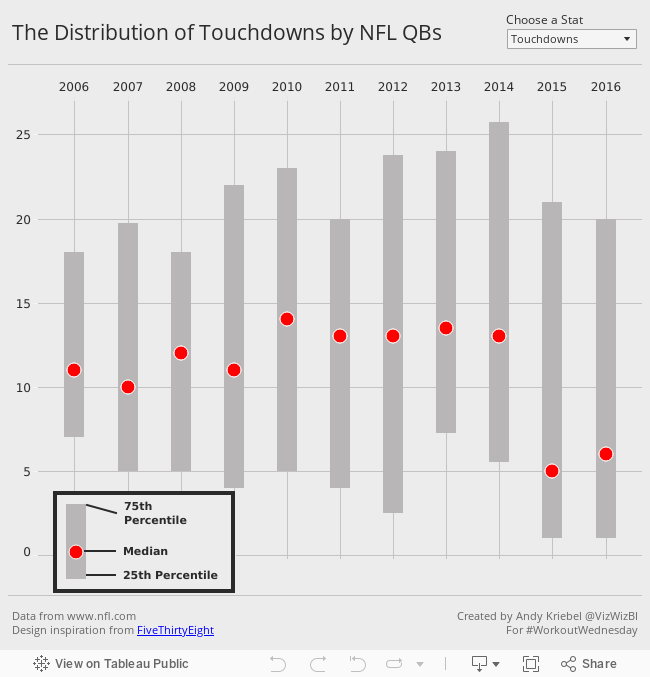
Below is the visualisation that I created. If you're reading this on a phone, tap on the image for the interactive version. Some requirements to keep in mind that are intentionally designed to make this tougher and to make you learn:
- All of the elements must be floating on a dashboard sized 650x650.
- You cannot use the Player dimension anywhere in the view.
- Match my colors including the background
- Create the legend (HINT: It's not an image)
- Match the tooltip (Note the stats that are displayed in the tooltip. This will be a bit tricky. Essentially you need to count the number of players that are contained within each band.)
- The viz should update based on the stat selected. The user should be able to choose between: Attempts, Completions, Interceptions, Touchdowns, and Yards
- The title should update dynamically based on the stat the user selects.
- Optional: Use Montserrat font (you can download it from Google fonts)
January 25, 2017
Workout Wednesday: Cumulative Passing Yards for NFL QBs
Nice challenge from Emma this week! She’s a massive NFL fan and since the Super Bowl is upon us, she decide to challenge us to create a common baseline chart that shows the passing yards for QBs in the NFL over the course of their careers. Go to her blog for the full challenge details.
First requirement was to filter to QBs that had played at least 3 seasons and had at least 2000 total passing yards. I did this by adding a data source filter. The benefit of doing this is that my Player list will now only include those that meet the criteria and I won’t need filters elsewhere.

Next, I created a LOD calc to get the first year for each QB.

I built upon that calculation with this calculation that gives me the number of seasons played per QB. This goes onto the Columns shelf.

The cumulative passing yards is merely a running total table calc set at the Year level. This goes on the Rows shelf.

I put Player on the detail shelf to get a line per QB. I also put Year and Yds on the Detail shelf since I need those for the tooltip.
Next was a parameter to pick a QB and use that to highlight the QB chosen. I then created a simple calculation that check the Player again the parameter and put that on the color shelf.
Last was the dot on the end of each line. To do that, I created a calculation that checks if it’s the end of the line and the player selected and, if so, return the cumulative passing yards. Since this is a nested table calc, it’s important to set both table calcs to compute using Year.

Some tidying up, adding the footnotes and I was done. I decided to float all elements on the dashboard to ensure they would render exactly as I wanted them to. Another fun week of learning something new! Thanks Emma!!
January 12, 2017
Workout Wednesday: Showing Nothing When 'All' is Selected

Really fun challenge from Emma Whyte for this week’s Workout Wednesday that helped me learn loads! I’ll highlight some of those below, but first, here’s the challenge:
- The dashboard title should change to say 'All Departments' when you select 'All' in the filter
- The department logo should change when you select a department, but disappear when you select 'All'
- The line chart title should update when you change the filter
- All the charts and tooltips should look the same as Emma's
And here’s my final version:
Here are some things that helped me along the way. First, when I need to add a dot onto the end of a line, I usually create a table calc or LOD calc and create a dual axis chart, but that’s totally unnecessary. I never knew that when you turn on mark labels you then have the option to show only the Most Recent. The great thing about this option is it make the mark a dot. Perfect for this exercise!

To get the dashboard title to update dynamically, I created a sheet instead of using the dashboard title. This gives me more flexibility to use calculations. I created this LOD calc to first count the number of categories in the view and then return a string based on that result.

I then placed this new field on the Detail shelf and updated the title of the sheet.
For the department logos, I knew I wanted to only show a shape when “All” is NOT selected, so I created a new sheet and then created this LOD calc that simply checks whether the number of product categories is 1.

I then placed the field on the Filter shelf and chose to Exclude False (keeping True only works too). From there, I placed the Product Category field on the Shape shelf and assigned the shapes for each Department.
To get the month into the title of the line chart I created this LOD calc to return the latest month.
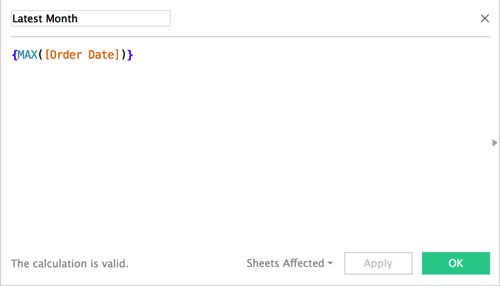
I placed this field on the Detail shelf and changed it to continuous Month and updated the title. The title is also supposed to show sales for the most recent month. I did this with a table calculation.

That’s about it. The rest was formatting and dashboard layout. Emma floated some things in her dashboard whereas I chose to tile everything. Both work just fine.
Overall, I learned quite a bit and that’s what Workout Wednesday is all about!
June 21, 2016
Tableau Tip Tuesday: Using LOD Calcs for Year over Year Comparisons

For this week’s Tableau Tip Tuesday I show you how to use Level of Detail expressions to get the latest year and prior year and then compare then to create visual alerts.
May 12, 2016
The Data School Gym - Timeline Pareto Chart

Another Data School Gym challenge for you. Today Jonathan MacDonald reached out to me with a question. I’m glad he reached out because I’m constantly asking him question. He asked:
How can we create a timeline Pareto chart? That is, we need to calculate the cumulative sales for a dimension from it’s first sale until it’s most recent, but the time has to be expressed as a % of cumulative days.
So, here’s the challenge for you. Create this chart below. It’s based on Superstore Sales and there are no big tricks. Just see if you can do it. Some hints:
- You will need an LOD calc for the x-axis.
- Include a single select parameter for the dimensions. Each line on the chart represents one element of the selected dimension.
- Include an option to highlight a specific element within the dimension selected.
I’ve disabled the download option on the workbook so you can’t cheat. Tweet me when you think you’ve figured it out.
April 12, 2016
Tableau Tip Tuesday: How to Use LOD Calcs to Compare Avg Sales to Avg Sales per Customer

For this week’s Tableau Tip Tuesday, I continue the series of Level of Detail Expressions by looking at the difference between average sales and average sales per customer. The idea here is you might want to answer the question:
For each state (or product category or whatever), what is the average sales per customer.
This is a very different question than simply the average sales per state. I walk through a couple of examples that hopefully help clarify the technique.