May 11, 2021
Threshold Analysis - Level of Detail Expressions vs. Table Calculations
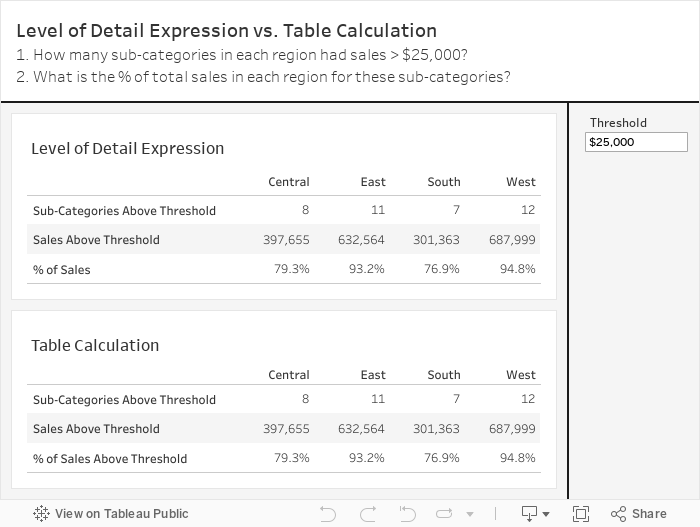
DS22 is nearing the end of their training and today was a bit of a refresher. One of the questions I wanted them to answer was how many sub-categories in each region had sales above $40,000?
We then expanded that to include (1) the sales for those sub-categories and (2) the % of sales those sub-categories make up of the region sales. They were to complete this using LODs.
As they worked on the task, I thought that this, for sure, could be done with table calculations. This is perfect for the Data School Gym.
If you know me, you know I love table calculations. And if you know Lorna Brown, you'll know she HATES table calculations. So this is your Data School Gym challenge Lorna.
Of course, everyone is welcome at the Data School Gym. It's actually not that hard and is a good way to help you learn about LODs vs. table calcs.
I'm not too fussed about making it look exactly the same. The point is to see if you can create the identical tables. Enjoy!

October 17, 2018
Tableau Tip Tuesday: 82 Charts in 80 Minutes
Monday, I ran a free Tableau Zen Master Tips & Tricks webinar. I changed it from the previous webinars I ran last year; this time I focused on charts. I wanted to see how long it would take me to build 82 charts. It took a little under 80 minutes. This was a rehearsal of sorts for the Tableau Speed Charting session Jeff Shaffer and I are running at TC18.
Click on the image below to access the workbook with all of the chart types. I've also embedded the video from the session in the "Video" tab. Enjoy!

July 19, 2017
Workout Wednesday: Who sits where at the Data School?
BTW, we also literally tracked how many times Bethany said "literally" just to get to her to stop saying it ALL THE TIME! This is a great way to change behaviours.
Your task for Workout Wednesday Week 29 is to visualise the favorite seats of each person in each cohort. Here are the rules:
- The cohorts must be listed in ascending ordered top-to-bottom from DS2-DS6.
- Within each cohort, the DSers should be ordered by the percentage of time they sit in their favorite seat.
- Create a donut chart for each DSer.
- The blue slice (Hex #2C5573) represents the time they spent in their favorite seat.
- The grey slice (Hex #D3D3D3) represents the time spent in any other seat.
- In the middle of the donut chart, you need to include 3 bits of information:
- The time they spent in their favorite seat as a BAN.
- Their name.
- The seat number of their favorite seat.
- Match the title and subtitle.
- Match the formatting.
- Match the tooltips.
- The viz should be 1000x700.
August 17, 2016
The Data School Gym - Running to the middle ground

This Data School Gym challenge is nothing more than a remake of an existing chart. I was reading Andy Kirk’s great series “The Little of Visualisation Design” and he showcased a chart from The Economist. From Andy’s blog:
"Typically, charts like this would have categorical value labels right-aligned to the left of the vertical axis. However, in this case, the labels are positioned with immediate proximity just to the right of the highest value - which is the value used to order the categories vertically. This approach aids readability, making it just that little bit more efficient to perceive the values and their associated categories."
According to The Economist, this chart shows:
"In every state where exit polling from this year’s primaries is comparable with the previous competitive cycle (2012 for the Republicans and 2008 for the Democrats), more voters have described themselves as “conservative” on the Republican side and “liberal” on the Democratic one."
I thought this would be a fun chart to try to rebuild in Tableau. I recreated the data manually, which you can download here. Note that the data probably isn’t 100% accurate to the original chart; I did the best I could and that’s not the point anyway. The point is to practice, practice, practice.
Some hints:
- This is three charts.
- I used 100% floating objects.
- The vertical and horizontal lines were added manually.
- Each event has its own sort: The top is sorted by Conservatives, the second by Liberals and the third by Moderates.
- The shading must span from the smallest to largest value for each event and state.
Give it a shot. I didn’t think this one was too terribly difficult. The toughest parts for me were getting the layout just right.
August 12, 2016
The Data School Gym - Population Pyramids

Today at the Data School, Amanda Patist was giving an Alteryx demo and she used worldwide population data. That got me thinking about population pyramids; I’ve always wanted to build one. When I create this, it required a few tricks to get it just right. So I thought I’d post it as a Data School Gym challenge.
Think you can rebuild it? You can download the XLS or the TDE and give it a go.
The small line chart show the % females and % males. The big chart shows the population. Post a link with your solution before you download mine.
Good luck!
Ignore the gray lines that are going across the viz. That’s a bug in Tableau 10.
August 10, 2016
The Data School Gym - Sorting a Dimension Member to the Top
A fun Data School Gym challenge for you today. Using this data source of human height since 1896, create this visualisation:

Requirements:
- Each country should show only 1896 and 1996 and they should be connected
- Label the midpoint with the country name
- Use an orange to blue diverging color palette based on the Avg Height
- Allow the user to filter by sex (no All option)
- Create a parameter to allow the user to pick a country; it should also include an (All) option
- Use the parameter to sort the visualisation; (1) If (All) is chosen then sort from largest to smallest based on the 1996 value. (2) If a specific country is chosen, that should be displayed at the top and the rest should be sorted from largest to smallest.
When the user picks Bermuda, for example, the visualisation should look like this:

Here’s the interactive version. Post a comment with a link to your solution. Good luck!
July 26, 2016
Tableau Tip Tuesday: How to Add Vertical Lines to Slope Graphs

In this week’s Tableau Tip Tuesday, I show you how I created a slope graph that includes vertical lines. I really like the addition of the vertical lines as they add structure to the overall look and keep the viz neatly aligned. This was originally posted as a Data School Gym challenge, which you can view here.
July 23, 2016
The Data School Gym - Slope Graphs with Vertical Lines

Some formatting tips:
- I used Avenir Next Condensed for the font - 18pt title, 12pt in the chart.
- The decreasing value is highlighted with color #E15759 and the increasing values are using #A5ACAF.
This was a fun little challenge for me. You’ll likely either get it immediately or get stuck. Upload your answer to Tableau Public and leave a link in the comments. Have fun! I need to get back to my Punk IPA.
June 28, 2016
Tableau Tip Tuesday: How to Display KPIs Next to Bars

This week’s tip shows you how to perfectly positive KPIs next to bars irrespective of the dimensions in the view. This started as a Data School Gym Challenge if you’d like to have a go at it before you watch the video.
June 27, 2016
The Data School Gym - Displaying KPIs Next to Bars

Here’s another Data School Gym challenge for you. I’ll create a video tomorrow for how to solve it. First, let me explain the problem.
I’ve written before about how to use ASCII indicators to compare to a goal.

But there are times when we might want the indicator as part of the chart next to the bars. Start by creating a year over year comparison like this:

Then create a calculated field as a placeholder:

Add the Placeholder as the secondary axis and synchronize. Then create a calculation that compares the two years:

Change the mark type to shape for the Placeholder axis and add the comparison calcuation to the Shapes shelf and the Color shelf. Change the shape and color to something more meaningful.

Then right click on “True” on either the Shape or Color shelf and choose “Hide”. This cleans up the viz nicely. Go ahead and hide the secondary axis while you’re at it.

Ok, looks good. However, what happens when we add another dimension?

The indicator is fixed to -50,000 so now there’s a wider gap between the indicator and the bar (because the value of the primary axis is smaller).
Here’s the challenge:
Notice how in each of the screenshots below, the arrow is always precisely the same distance from the left side of the bar. That’s the tricky bit.


You can download the same version of Superstore Sales that I used for this example here.
June 22, 2016
The Data School Gym - Conditional Formatting a Slope Graph

I absolutely love this visualisation by FiveThirtyEight. It’s clean, uses minimal color, and is overall nice to look at.

So naturally I wanted to see if I could recreate this in Tableau, but more specifically Tableau 10. Here’s your challenge, reproduce my viz below. Post a link to your image in the comments or Tweet it to me. Download the TDE here or the Excel file here.
Here are some tips:
- Use Tableau 10 so that you can use the new Tableau fonts. Or just use the font of your choice if you don’t have Tableau 10.
- The fonts for the countries in black is 11pt while the font for the grey countries is 8pt.
- If you’re using Tableau 10, using groups in calculation will come in mighty handy!

And if you’re looking to do a bit more, here’s another version that only highlights the countries that would have an increased score. This one doesn’t require groups, but could certainly be done that way if you choose.

Good luck! Go smash it!
May 18, 2016
The Data School Gym - Marimekko Alternative
Former Data Schooler Nicco Cirone posted a challenge to the team at The Information Lab Monday to create this alternative to a Marimekko chart.
 |
| Click the image for a larger version |
Nicco got the idea from this post by Jon Peltier about the problems with Marimekko charts. Give it a shot. It’s a bit tricky and one you will surely learn something from. There are several very subtle tricks in here. Try to match mine pixel for pixel.
If you want to use the same version of Superstore Sales that I used, you can download it here. If you think you have it and want to check to see if you got it right, you can view the final solution on my Tableau Public profile here.
Good luck!
May 12, 2016
The Data School Gym - Timeline Pareto Chart

Another Data School Gym challenge for you. Today Jonathan MacDonald reached out to me with a question. I’m glad he reached out because I’m constantly asking him question. He asked:
How can we create a timeline Pareto chart? That is, we need to calculate the cumulative sales for a dimension from it’s first sale until it’s most recent, but the time has to be expressed as a % of cumulative days.
So, here’s the challenge for you. Create this chart below. It’s based on Superstore Sales and there are no big tricks. Just see if you can do it. Some hints:
- You will need an LOD calc for the x-axis.
- Include a single select parameter for the dimensions. Each line on the chart represents one element of the selected dimension.
- Include an option to highlight a specific element within the dimension selected.
I’ve disabled the download option on the workbook so you can’t cheat. Tweet me when you think you’ve figured it out.
April 22, 2016
My Tableau Journey

I’m often asked how I got started with Tableau. How did I end up at Facebook? Why did I move to the UK to start the Data School? I gave a presentation at Surrey County Council yesterday about those exact questions, so I thought I’d share it with everyone. I hope you enjoy it!
March 16, 2016
The Data School Gym - Sort and Filter by % of Total
A new week means another challenge in the Data School Gym. This challenge came about because Nai Louza had a tough calculation she needed help figuring out. Here’s the final result you should produce:
 |
| Click on the image for a larger version |
Requirements
- Build a stacked bar chart that shows % of total sales for the East and West within each Product Sub-Category
- Sort the bars by the % of total sales in the East
- If you reorder the Regions, the sort should switch to the % of total sales in the West
- Provide a method for the users to pick how many product sub-categories they want to include
Hints
- You can do this with table calculations. You do not need to use LOD calcs.
- For the sorting, you have to figure out how to sort by only the value of the East (or West if you change the order on the color shelf).
- The Top N filter you see above is NOT a parameter.
You can find the final solution that I created here. Don’t cheat. Try to figure it out before looking at the solution. Reverse engineering is such a great way to learn.
March 10, 2016
The Data School Gym: How do Female and Male Literacy Rates Compare Across the World?

Today’s test was inspired by this blog post from John Mathis in which you have to create a 45 degree reference line to aid in the analysis of comparing two groups. If you’d like to take the challenge, you can download the data here and here are the requirements:
- Show female vs. male literacy rates on a scatterplot
- Include a dot for each country
- Create a 45 degree line so that you can clearly see which group has the higher literacy rate
- Color-code the dots to indicate whether females or males have a higher literacy rate
You can download my workbook below to see how I created it, but give it a go on your own before you look at my solution (or John’s).
February 23, 2016
Tableau Tip Tuesday: How to Create a Detailed Histogram

This week’s Tableau Tip Tuesday is a guest post from Data School consultant Rob Suddaby. You can view the original post on the Data School blog. Yesterday, Rob showed me a fantastic histogram he created and I encouraged him to share how he built it. What I really like about this method is that, if done well, it can show frequency, clustering and magnitude.
Give Rob a follow over on Twitter.
February 3, 2016
Dear Data Two | Week 42: Laughing

For my analysis, I only considered laughing that occurred at the Data School, which means data is only through Thursday as we had a company trip the rest of the week.
I collected a few characteristics about each laugh:
- When
- Who was I with
- What was I laughing about
- How big was the laugh
From there, I started my analysis, focusing mainly on Lorna's accusations that I pick on her too much. What you'll find in the analysis below is that it looks like I laughed AT Lorna way more than I laughed WITH her. However, once I created the postcard and included what we were laughing about, it's evident that I was often laughing at someone else, not her.
In the end, I wanted the postcard to look like an emoji, so I built an emoji view of all of the laughs in Tableau first before creating the postcard. What I like about the postcard is that I gave me the opportunity to incorporate more information and more detail into the final product.
Overall, a very fun week!

November 6, 2015
Dear Data Two | Week 26: Workspace

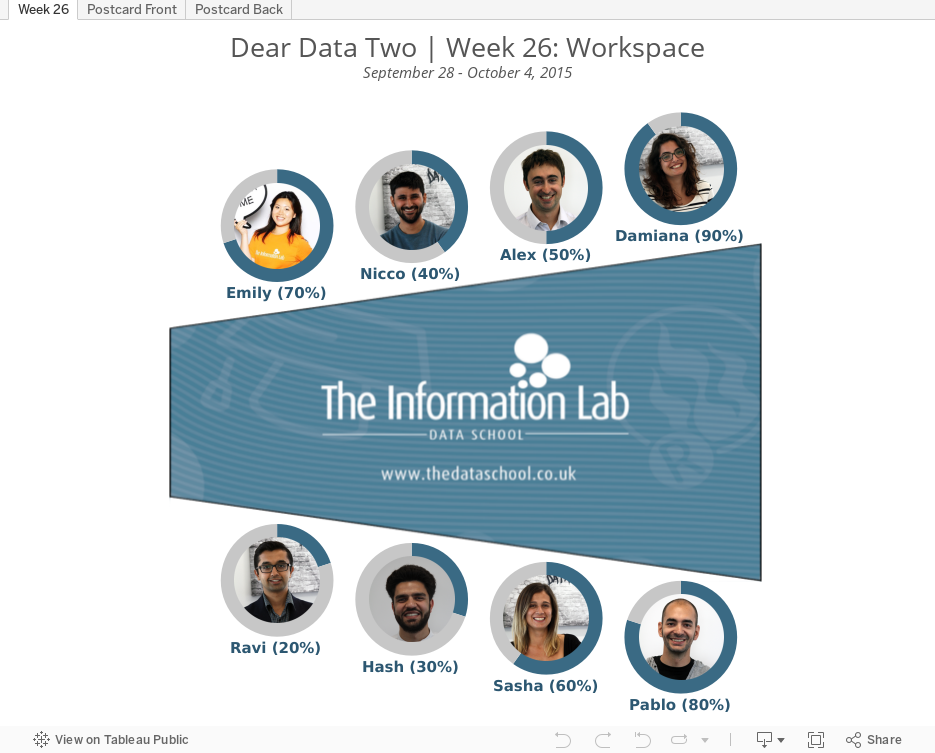
The topic for week 26 was workspace and my first thought turned to the Data School and the consultants I get to train every day. To say some of them are creatures of habit would be a massive understatement. Just a week into their training, they were sitting in the same spots every day, so I made them start rotating places. Some took well to this and others (ahem Damiana) insisted on maintaining their spot, even occassionally threatening the coach.
They also have a great affection for donuts. Most Fridays I bring them a sugar filled breakfast. Little do they know that I’ve been tracking their seating and donut eating habits during their time with me. Naturally, since this week is about them, I decided to create donut charts with their pictures in the middle to show how often they sit in their favorite spot.
This was a fun process that I’ll detail in another blog post next week as a Tableau Tip.
Creating the postcard turned out to be an absolute pain! First, I had the table backwards, so I ripped that card up. Second try, the colours I chose for the donuts didn’t work, so I ripped up that card. Finally, I got the card completed, pasted on their little pictures, only to realize I had the table backwards again. I decided to heck with it; good enough is good enough and this project is about learning from the mistakes we make along the way anyway.
Lastly, I added little chocolate donuts under each picture to show how many they typically eat.
June 25, 2015
Tableau Tip: How to Create DNA Charts

As part of this exercise, we were building a dot plot and Laszlo Zsom asked how to connect two dots on the same row. I hadn't ever done it before, so I used a Gantt chart to connect them. Then Chris Love suggested using lines.
In this week's tip (two days late as it is), I demonstrate both of these methods. Click on the image below to enjoy the video.