April 2, 2024
September 12, 2023
#MakeoverMonday Week 37 - First time home buyers in the UK are being shut out of the market

September 5, 2023
60 Unique Ways to Visualize Time in Tableau

August 15, 2023
An 8-Chart Guide to Dashed Lines in Tableau

In this tip learn when to use of dashed lines. Through this video, I'll walk you through 8 distinct examples, demonstrating the effectiveness and clarity that dashed lines can bring to your data representation:
- Line Chart with Dashed Elements: Understand the basics of creating dashed lines.
- Multiple Lines Differentiation: Explore how to distinguish multiple measures using varied dashed patterns.
- Line/Area Chart Combination: Integrate dashed lines with filled areas.
- Comparison to a Moving Average: Learn how dashed lines can contrast raw data against its moving average, helping in trend analysis.
- Current Year vs. Prior Year: Used dashed lines to make year-on-year comparisons.
- Combination Chart: Combine several chart types, using dashes to maintain clarity.
- Barbell Chart Analysis: Learn how dashes can link data points in a barbell chart, highlighting change and consistency.
- Forecast vs. Actuals: Create a forecast with dashed lines.
January 6, 2023
How to Create a Two Color Area Chart in Tableau
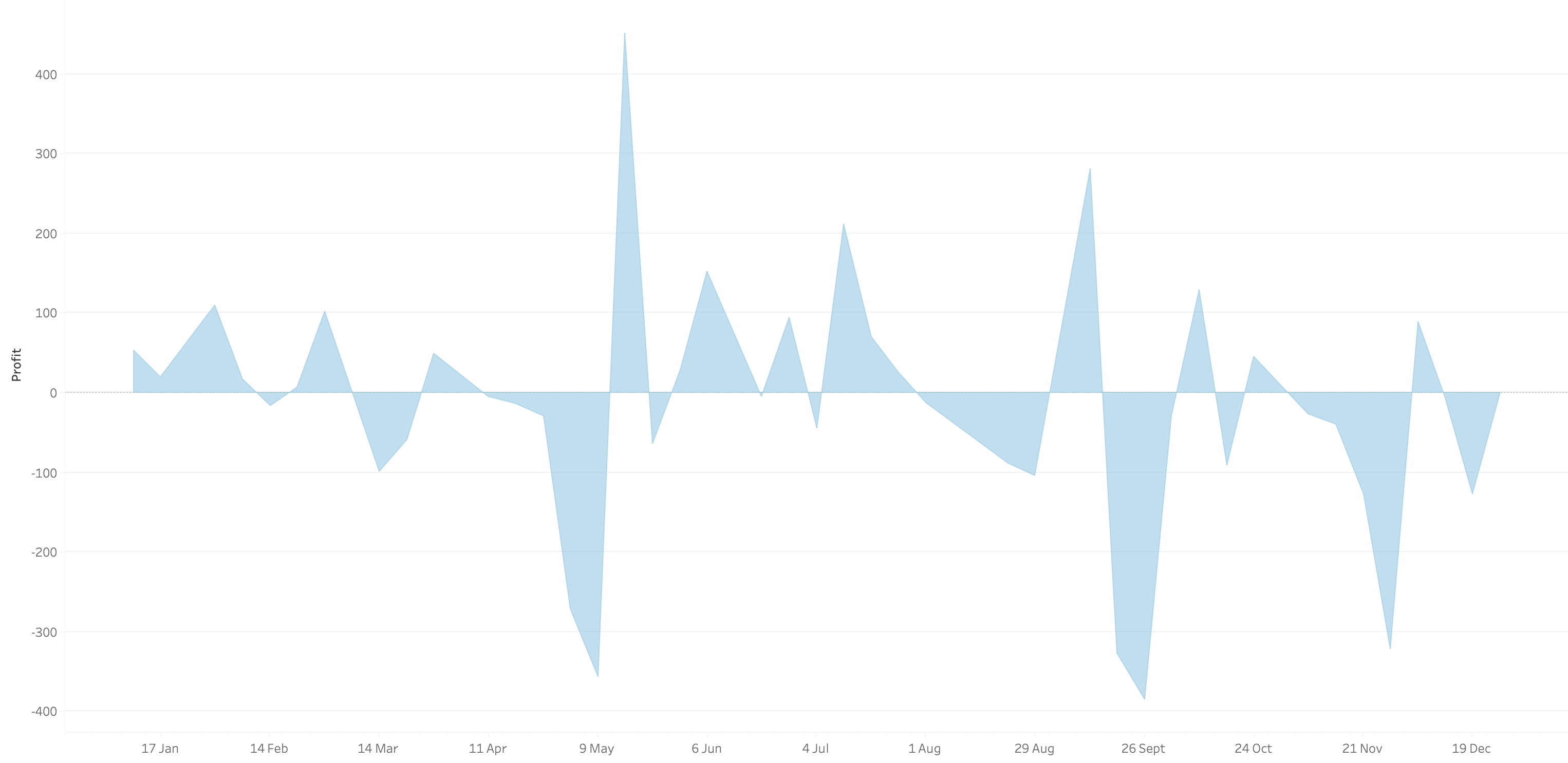
In this week's Watch Me Viz, I showed the problem this tip helps solve. An area chart in Tableau only allows a single color. Like this…
What we want is an area chart like this with two colors.
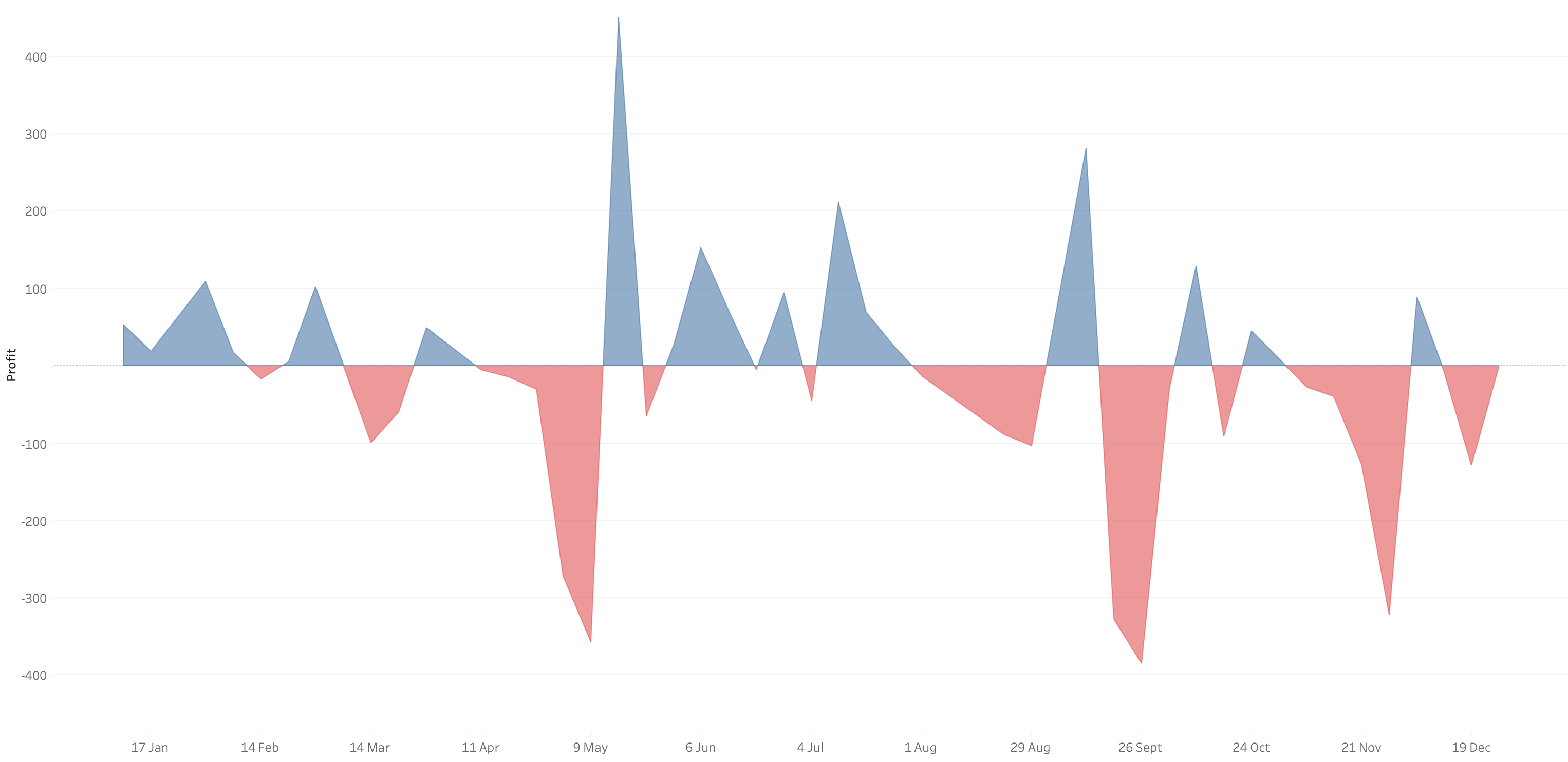
In 9 simple steps, I’ll show you how to build it. Follow along with the video. The 9 steps are listed at the bottom of this post.
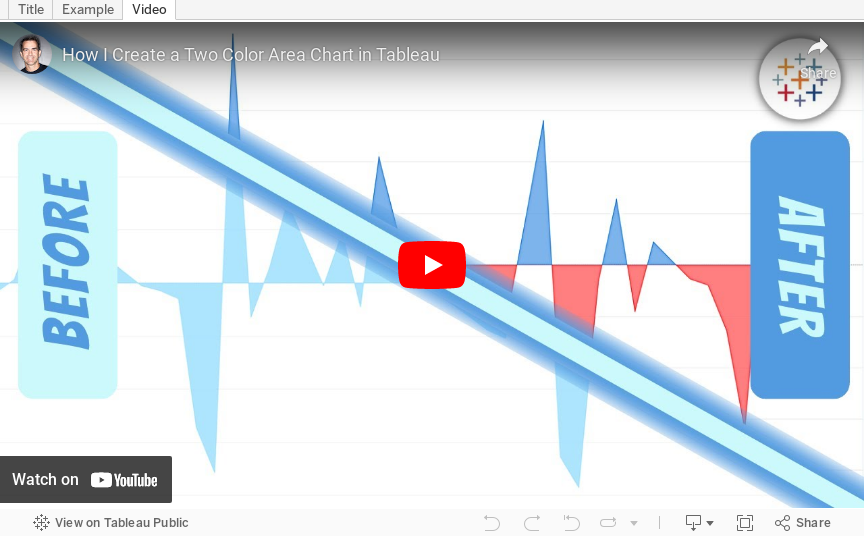
STEPS
1. Create the area chart
2. Show what happens when you add a profit to color - you only get one color
3. Duplicate the measure
4. Fix the axes
1. Top axis starts at 0
2. Bottom axis ends at 0
5. Choose a color for each area chart
6. Format the axes to get rid of 0
7. Add reference lines to scale the charts relative to each other
1. WINDOW_MAX(ABS(SUM([Profit])))
8. Duplicate for the negative reference line
9. Formatting
January 3, 2023
#MakeoverMonday 2023 Week 1 - The Change in Greenhouse Gases in the Atmosphere

2023 is here and #MakeoverMonday will be here the entire you to help you continue to learn and improve. Come on the journey with us each week. Build your portfolio. Showcase your skills. You just might get that job you've been seeking. It's happened, a lot, by participating every week.
For week 1, we were analyzing greenhouse gases in the atmosphere from 1979-2021. The original visualization is quite simple.

We have CO2 and total gases on the left axis and the variance to 1990 on the right. Overall, the chart is pretty easy to read, with the exception of knowing that the red line is always compared to the 1990 value. That definitely needs to be more clear. It's also missing a title, so without the website it is posted on, you wouldn't necessarily know what it's about.
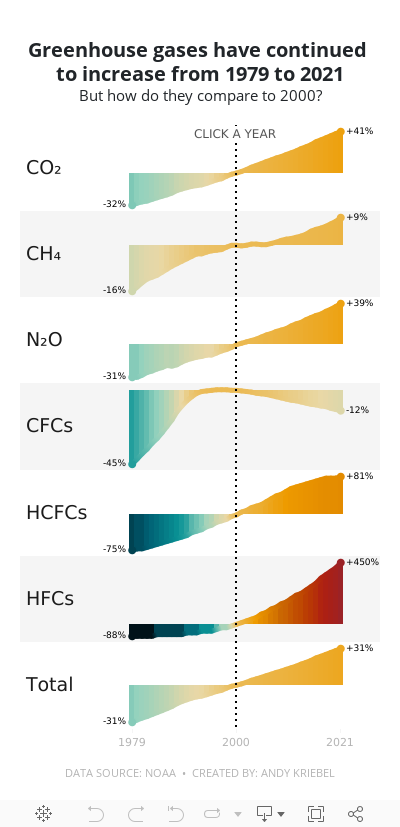
For my viz, I started by reproducing the original, but it doesn't look as good because the data we have starts at 1979. So you miss the big upward curve. From there, I focused primarily on making good looking sparklines that show comparisons with a parameter action. I also showed how to create an "area chart" with multiple colors. I'm going to create a tip video for it; I like how it turned out.
Here's the livestream and below is the visualization for you to interact with. The viz does not render properly on Tableau Public, but hopefully you get the idea.
I hope you continue to join me throughout the year so that we can learn together.
Have a wonderful 2023!
June 20, 2022
#WatchMeViz - Workout Wednesday 2022 Week 1

April 21, 2022
#B2VB - 2022/W4 - Design Some KPIs
Resources:
KPI Samples from Tableau Public:

July 12, 2021
#MakeoverMonday 2021 Week 28 - COVID Vaccination Rates by Ethnicity and Age in England

June 23, 2021
Power BI - #WorkoutWednesday 2020 Week 53 - Executive Sales Dashboard

March 26, 2021
#WOW2021 Week 5 - Predicting HBCU Future Enrollment
Workout Wednesday 2021 week 5 required you to become familiar with the statistical functions in Tableau as well as being able to create predictions based on those stats. I hadn't done either of these before, so I knew it would be a good learning opportunity.
 |
| View the dashboard here |
Building the chart itself was simple. I chose to NOT truncate the axis as Candra did because it's not best practice to truncate the axis of an area chart as it skews the magnitude of change across time.
To create the Gaussian process regression, I found information on Tableau's website about the calculation and how to configure it. For Gaussian regression, the help says to use this formula:
MODEL_PERCENTILE(
"model=gp",
AVG([Days to Ship Actual]),
ATTR(DATETRUNC('month',([Order Date])))
)
However, when I did so, the chart and values were not the same as Candra's. So I used the MODEL_QUANTILE function instead. As always, the help within the calculation window was immensely useful.

Great, I now had the line chart. But I couldn't figure out how to get the prediction to extends another five years. A Google search for "predicting the future Tableau" sent me to this link.


Some formatting, a few calcs to get the tooltips and title correct, and a sheet to trigger the change of the measure with a parameter action and done! Check out my solution here.
 |
| View the dashboard here |
March 8, 2021
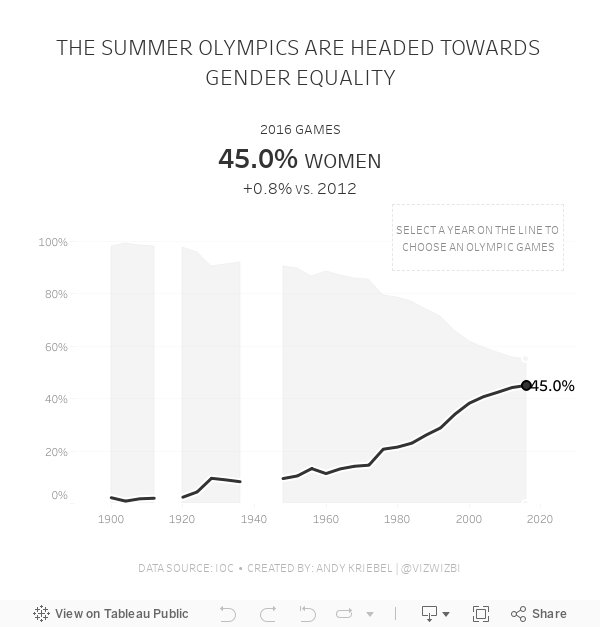
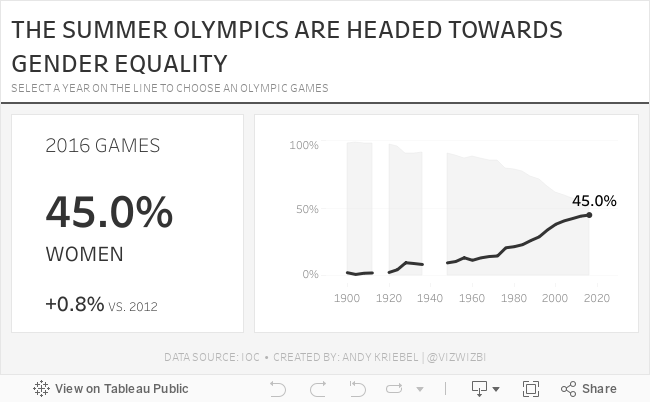
#MakeoverMonday Week 10: Female Participation in the Summer Olympics

First, thank you to Tommaso Ferri for moderating Watch Me Viz. I enjoyed working with this data set and was able to build nine vizzes in about 40 minutes, then took another 40-50 working through formatting and some pesky table calcs. I got there in the end!
After the live stream ended, I created one more version that uses containers. I think I like this one best. Below you'll find the live stream recording as well as the two final visualizations.
Thanks for watching!
November 23, 2020
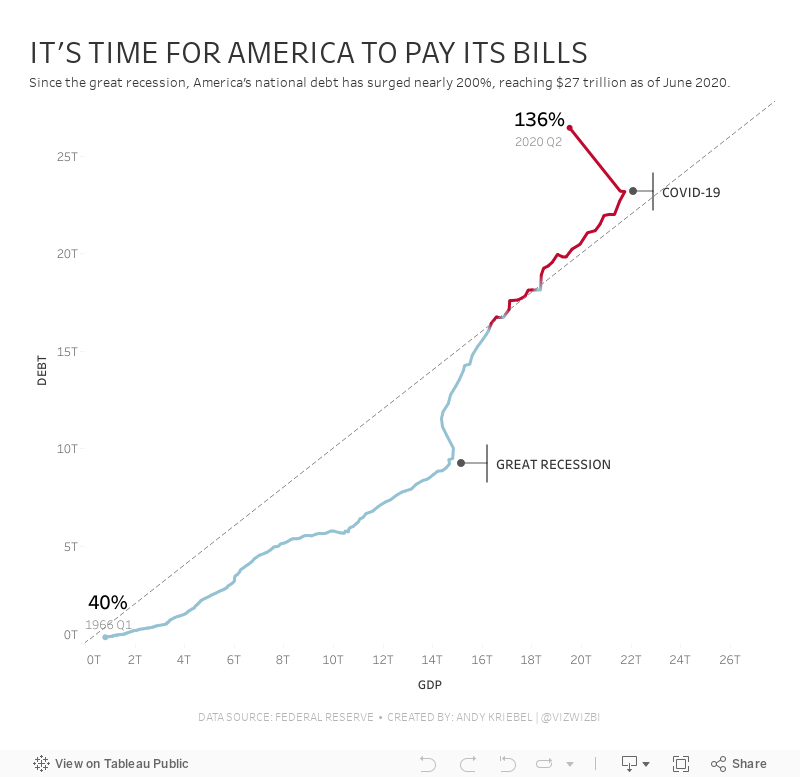
#MakeoverMonday: America Needs to Pay Its Bills

Today's Makeover Monday marked my 1,000th viz published to Tableau Public. I must say that I'm pretty proud of myself. This feels like a pretty big milestone in my career. I wonder how many hours I've spent using Tableau in my life.
Thank you for all of your support and encouragement along the way. Tableau wouldn't be anything without the Community.
Let's get to week 47. The visualization comes from Visual Capitalist.

- The bar/line combination charts work well since they are on the same scale. This also makes them easier to distinguish.
- Choosing colors that match the American flag (I'm assuming that was intentional)
- Making 2020 a slightly different shade of red
- Title is clear
- Text callouts add useful context
- Big numbers to show the most recent values
- The 2020 bars are at the quarterly level, but the remaining bars are by year. Is it the end of the year? The start of the year? That could easily lead to confusion. Keep it as a consistent time scale.
- Compare debt to GDP
- Show the debt to GDP ratio
- Show when the debt to GDP ratio exceeded 100%
- Highlight important milestones that led to the largest increases
October 29, 2020
How to Create Time Series Tile Grid Maps

Unlike traditional maps, tile grid maps allow you to allocate equal space to each geographical area. We've probably all seen hex maps of the United States. Tile Grid Maps are similar, except they are squares with each block being the same shape and size.
In this video, I show you first how to create the tile grid map, then how to overlay time series data. I then show you three different visualization types for the time series. You could easily create bar charts as well.
Enjoy!

October 1, 2020
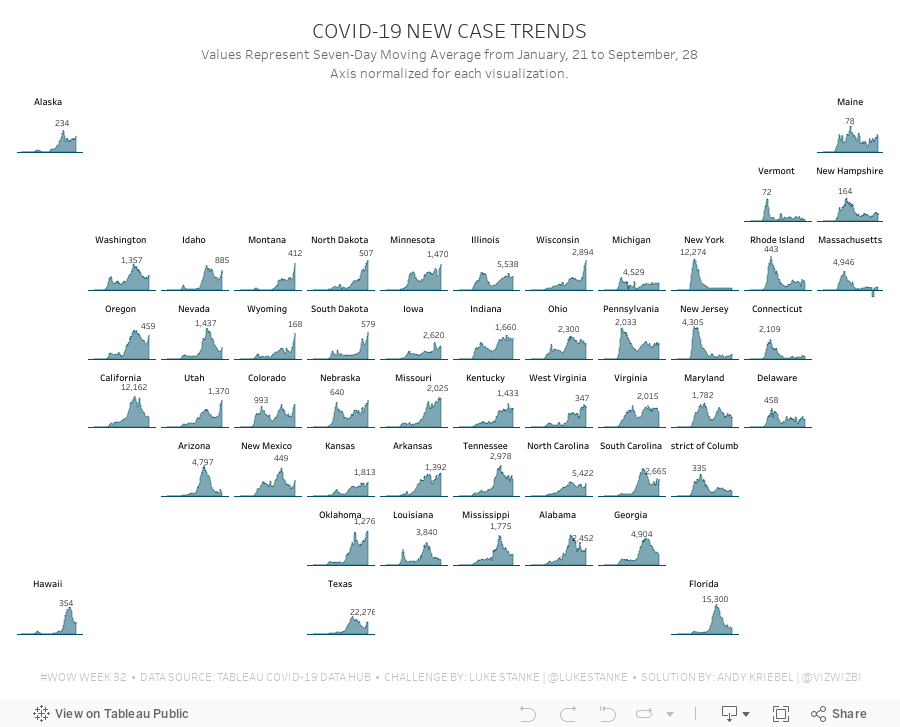
#WorkoutWednesday 2020 Week 32: COVID-19 New Case Trends

As I continue to catch up on Workout Wednesday challenges I've missed, I'm picking and choosing those that looking interesting at first glance (and that I think are doable in a short amount of time). Week 32 was one I knew I could get done quickly since it was very similar to 2017 week 7. Actually, since the columns and rows were provided to use already via a CASE statement, the trellis part of the exercise required no calculations and no work.
The toughest part was normalizing the calculation within each State. The key here is to think about each State individually, find the highest value, and then compare all of the other dates to that value. I did this by putting each State and date into a row, creating a calculation to get the largest value, then computing the necessary ratio. Once I had that, it was simple to turn it into a chart.
To get the State names in the middle of each chart, think about how you can count half of the day in each chart. Then take that value and add it to the first date and you'll get a single date that's halfway across the date range. This solution will be flexible for any new data that would be included.
Some difference between mine and Luke's
- I didn't filter the dates; I decided to use the entire data set, but keep in mind that I did this several weeks after Luke posted the challenge.
- I created a mobile version as well.
And with that, here's my completed #WorkoutWednesday for week 32 2020.
September 21, 2020
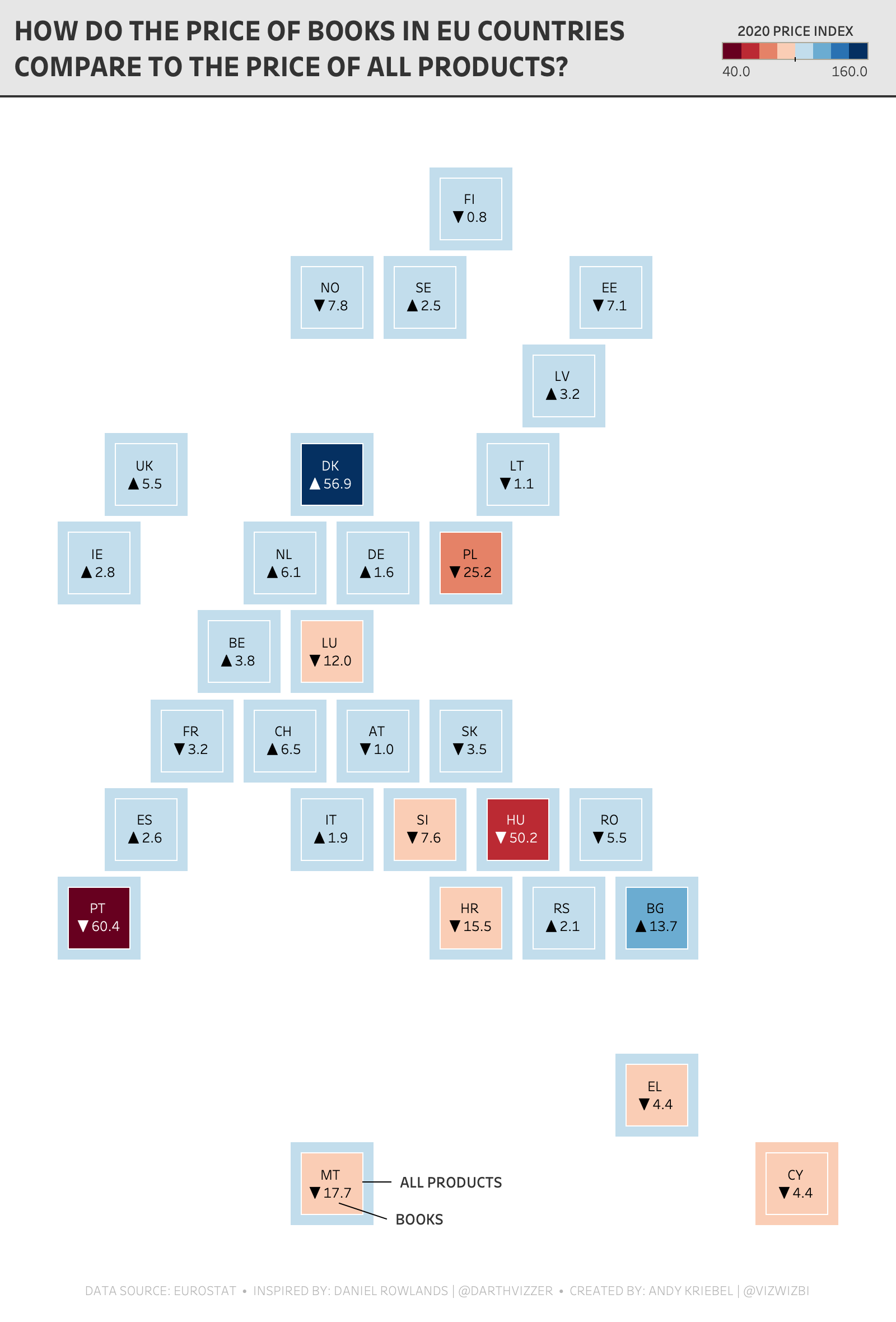
Watch Me Viz - #MakeoverMonday 2020 Week 38 - Pick Up A Book And Read
- Geometrics shapes (for the default number formatting) - LINK
- FIXED Level of Detail Expressions in a Plain English Sentence - LINK
- TABLE CALCULATIONS in a Plain English Sentence - LINK
- Shading between two lines - LINK
- Daniel Rowlands - TWITTER
- Daniel Rowlands (EU hex map template) - LINK
October 12, 2018
Workout Wednesday: Top & Bottom Highlights
The Easy Parts
- Creating the small multiples layout
- Limiting the data to 2017/2018. I chose to do this via a data source filter so that I didn't have to worry about adding the date field as a filter and add it to context.
- Creating the line chart
- Formatting the axis properly
- Creating the calculation needed for the shading (I approached it by doing one of the top calculations, then one of the bottom calculations, then the combined)
- Creating the total sales text at the top-center of the chart
The Biggest Challenge
- I knew I had to calculation right for the label for the latest month, but for the life of me I couldn't get it working. I felt like I needed another axis for the mark, then it dawned on me like a slap in the face how simple the solution is.

October 1, 2018
Workout Wednesday: Vertical Label and 3 Mark Types
I was expecting some crazy polygon calculations from Rody, and perhaps that's how he approached it. I, however, was able to create the required view with only two marks and the text shelf. Before I get to how I came up with my solution, here's my submission:

For the dashboard layout:
- I used a vertical container with a 50px blank on each side.
- The rest of the viz is in a horizontal container in the middle of the vertical container.
- I added spacing to the outside edges of the black line to get the spacing right.
- I added some spacing at the top of the parameter and the dynamic title.
- The parameter is in a horizontal container with a blank on either side set to distribute evenly.
- I used an area chart on one axis.
- I used a line chart on the other axis.
- I used an ascii ● as a label on each mark on the line. This has to be centered vertically and horizontally for it to appear in the correct place for each month.
- For the vertical label, I used this knowledge base article to add a line break after each letter. Since there are 8 letters max, my formula has 8 lines and then I trim the text.

February 28, 2018
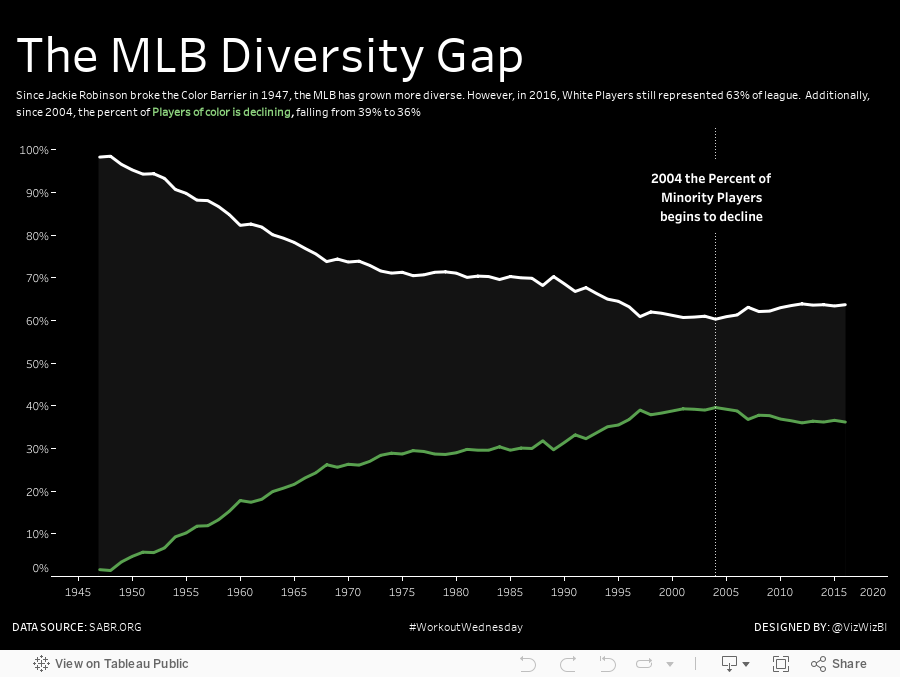
Workout Wednesday: The MLB Diversity Gap
Suddenly a possible solution popped into my head (I figured it out by hovering again and again over his viz). I'm not going to give away any spoilers. Here's my solution if you get stuck...but give it a solid effort before you look at someone else's solution.
Good luck!
June 5, 2017
Makeover Monday: America's Most Visited National Parks
For week 23, we are looking at the popularity of America's National Parks. As an American, I've learned to cherish the amazing, free natural wonders sprinkled around the country. In particular, when we lived in California, we made it a point to visit Yosemite, Joshua Tree and the Grand Canyon amongst other places. They truly are worth a visit.
The viz that we are making over this week comes from FiveThirtyEight and it really quite fantastic, like most of their vizzes.

What works well?
- Great use of highlighting
- Including gridlines to help guide the eye
- Noting the source
- Nice use of a bump chart
- Shows patterns really well
- Subtitle explains how to interpret the viz
- Colors are distinct enough to follow through the viz
What could be improved?
- The title is very boring.
- Lack of interactivity
- How can I identify a park that's not highlighted? It would be nice to have a way to choose another park to highlight.
- The top 6 parks are highlighted, but why are the others highlighted? It seems pretty random.
- While this shows me the most popular parks, it lacks the context of how many visitors and how that has changed over the years.
What were my goals?
- Focus on the top 25 parks
- Focus on the last 50 years
- Include the visitors to provide more context when comparing parks
- Use a small multiples layout and try to recreate this viz that I highlighted on Data Viz Done Right
- Include the total visitors somewhere so the reader doesn't have to figure it out
- Create the entire viz in a single view (except the footers)
But then I had another question in my head: At State level data, how many States account for 80% of all visitors? For this, I created a simple Pareto chart. Two vizzes for the prices of one! Enjoy! Click on either image for the interactive version.